

Campaigns: send to a whole list
A campaign sends one personal message to everyone in an audience, one contact at a time. You can add follow-ups for people who don’t reply, send now or later, and make it repeat. Click Launch Campaign in the left menu, then New campaign.
The Campaigns page has three tabs: Campaigns, Audiences and Templates. On the Campaigns tab you can filter by All, Running, Completed or Not sent yet, and switch between Cards and List.
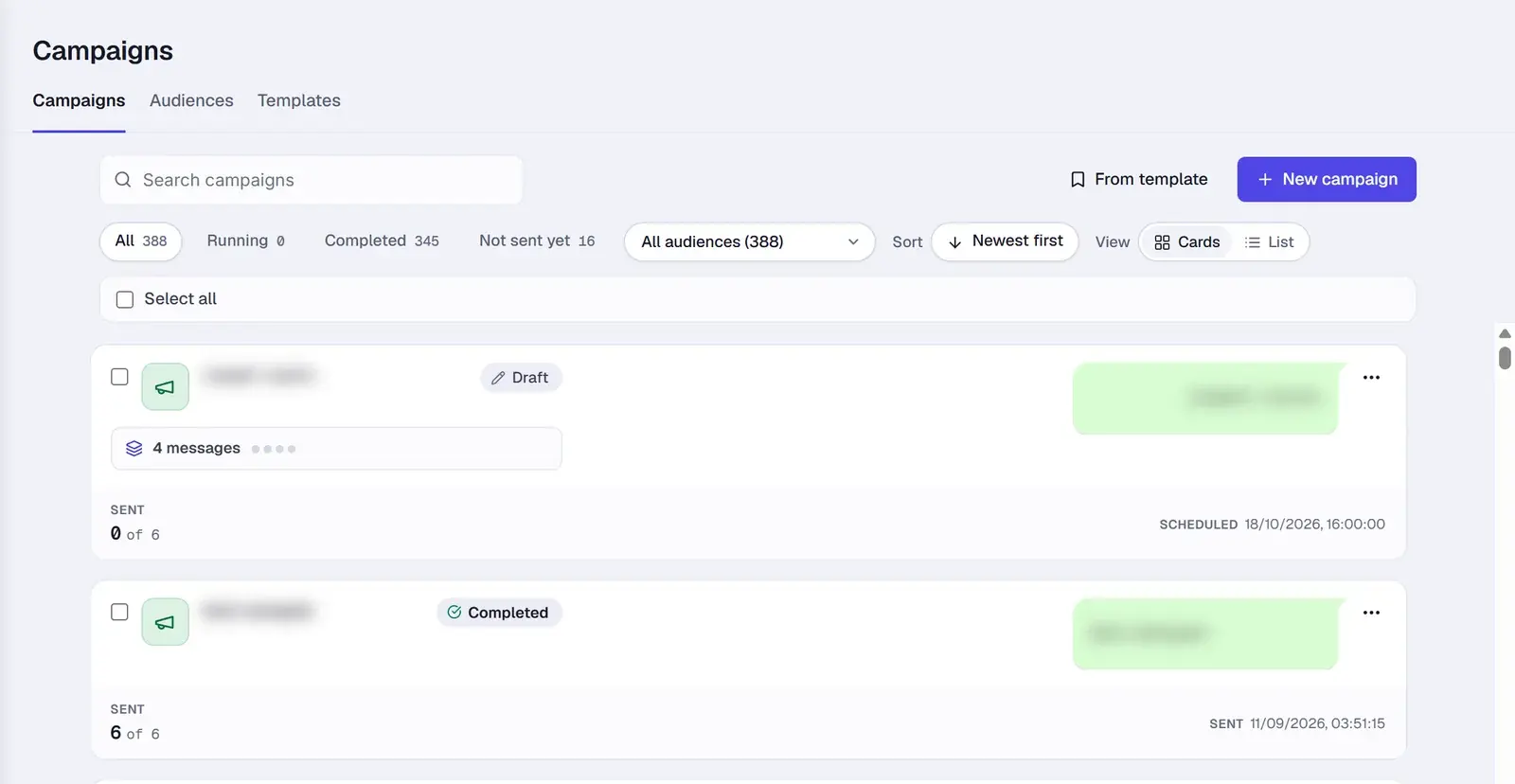
Create a campaign
Click New campaign. The campaign has four steps: Audience, Message, Timing and Review. Click Continue to move on, or Save draft to finish later.
1. Audience
Under Who to send?, pick one or more audiences. To make a new one, click New Audience, give it a name and choose an import method:
- CSV, XLSX, XLS: upload a spreadsheet with a phone number column. Other columns can be used to personalize the message.
- Google Sheets: import from a sheet.
- WhatsApp Contacts: pick contacts and groups from your WhatsApp. This needs a connected WhatsApp.
2. Message
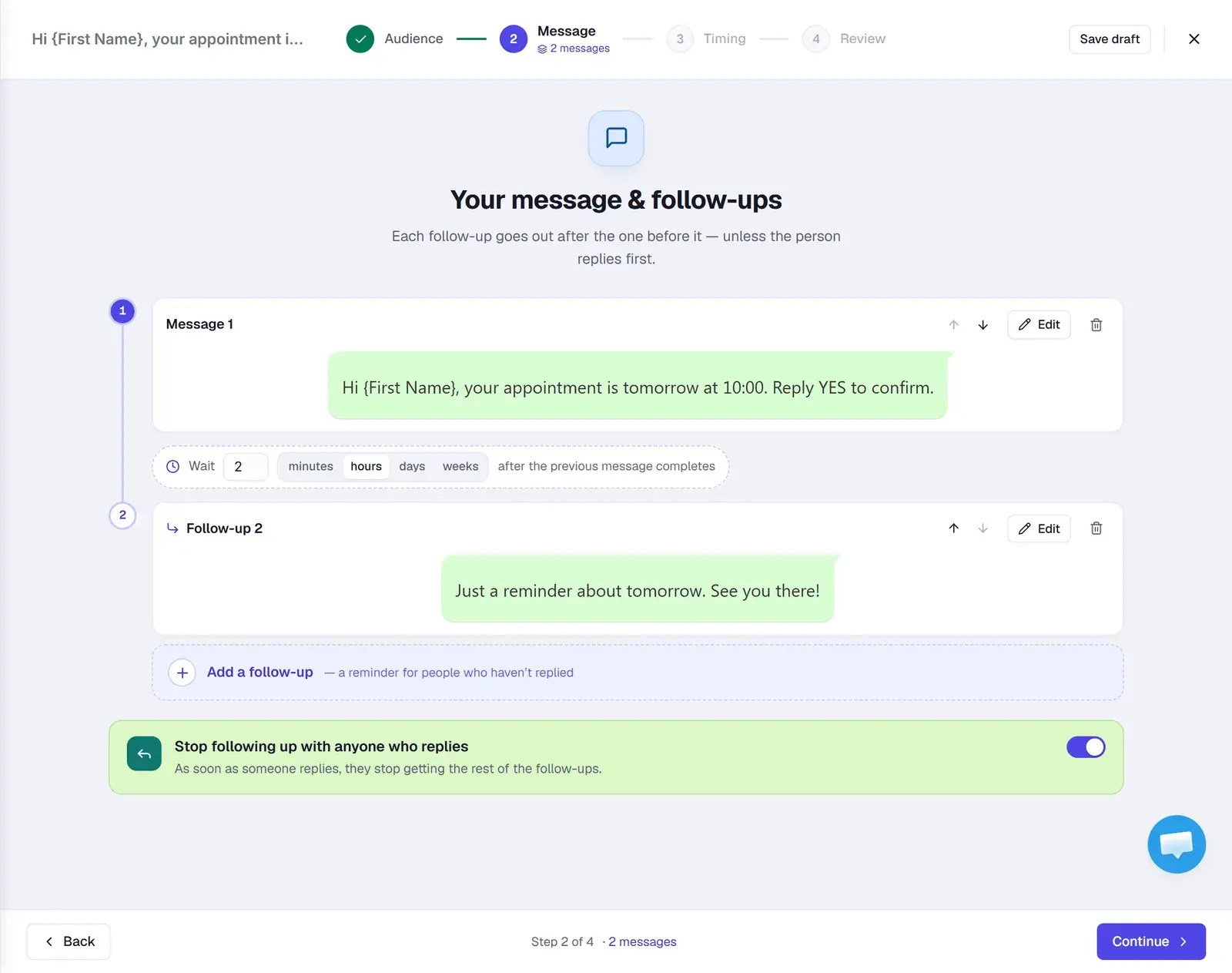
- Under Write your message, type your text. Use Add files for media, Templates for a saved message, or Set a Poll.
- To personalize, click a field under the editor, such as First Name, Last Name, Display Name or Phone. It’s added in braces, for example
{First Name}. Click +1 more for the rest. - Optional: click Add a follow-up to send a reminder to people who haven’t replied. For each follow-up, set how long to Wait after the previous message: minutes, hours, days or weeks.
- Stop following up with anyone who replies is off by default, so everyone gets every follow-up. Turn it on to stop the sequence for anyone who answers.
3. Timing
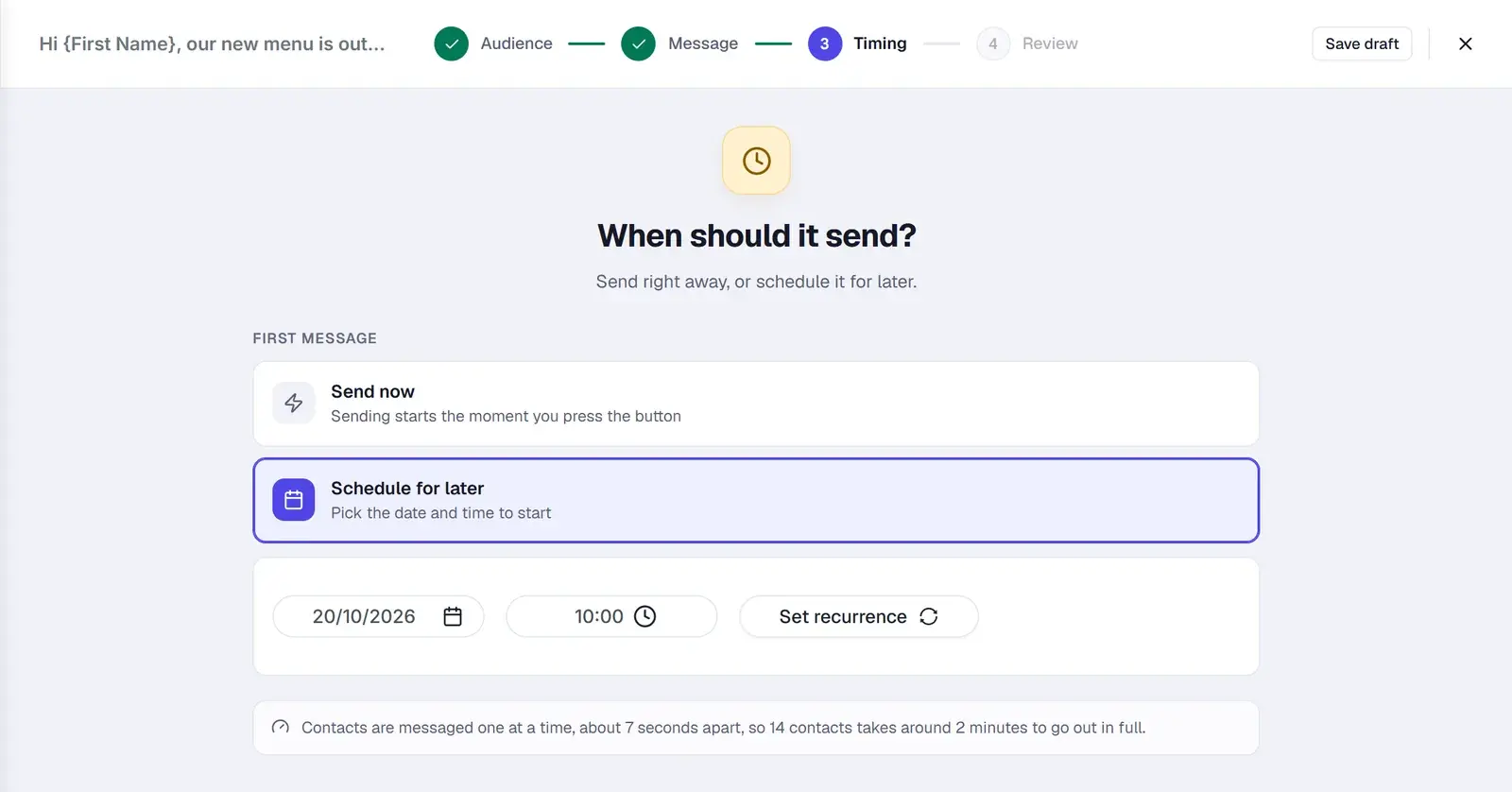
Under When should it send? (When does the first message go out? if you added follow-ups), choose:
- Send now: sending starts the moment you confirm.
- Schedule for later: enter the date and time to start. To repeat the campaign, click Set recurrence and choose every so many days, weeks, months or years, and when it ends.
Contacts are messaged one at a time, about 7 seconds apart. For larger audiences the step shows how long the whole audience will take.
4. Review
Check the summary under You’re all set. Each section has an Edit link. Then:
- Send now to N contacts, and confirm with Yes, send now. Messages can’t be recalled once they’re sent.
- Or Schedule it if you picked a later time.
If your message uses a field the audience doesn’t have, for example {Company}, the Review step warns that it “won’t work” and you can’t send until you fix it.
Start from a template
Click From template to start from a saved sequence. Blueticks copies its messages and waits, and you choose the audience and start date.
The Templates tab keeps messages you reuse. Create one there with New Template, or use Save as template on a campaign.
Track a campaign
Click a campaign to open it. You’ll see its status, its messages and how many reached WhatsApp, with counts for Sent, Delivered, Read and Failed. The Stop on reply switch is at the top.
A campaign’s status is one of Draft, Scheduled, Running, Paused, Completed, Stopped or Expired.
Click View delivery logs to see each contact’s status. The counts at the top show Sent, Delivered, Read, Interacted and Failed. Switch between Sent and Waiting to be sent, and click Export to Excel to download the log.
Change a campaign
Click the … menu on a campaign. What you see depends on its status. The options include:
- Edit message: change the text for everyone it hasn’t reached yet. People who already got it keep the earlier version.
- Rename, Duplicate or Save as template.
- For a repeating campaign: Skip next send, or Stop this and future sends.
- Delete campaign: stops sending. Anyone who hasn’t received it yet never will.
You can change a campaign’s audience or start time only until its first message goes out.
When campaigns send
Campaigns send through your WhatsApp connection. With a connection on this computer, keep WhatsApp Web open in Chrome while the campaign runs. With an always-on connection (Pro), campaigns keep sending when your computer is off.
Pacing and safe sending
Contacts are messaged one at a time, about 7 seconds apart, so a campaign never fires at your whole list at once. Watch the short safe sending video for more tips.
On the Free and Basic plans, campaigns carry “Powered by Blueticks”. Standard and Pro send without it. See Plans & billing.
Good practice
- Only message people who agreed to hear from you.
- Send yourself a test first to check personalization and formatting.
- Schedule for hours that suit your audience’s time zone.