

WhatsApp Connections
Blueticks sends through one of two connections. On this computer (Free): sends while WhatsApp Web is open in Chrome. Always on (Pro): sends from the Blueticks cloud, even with your computer off.
Which connection do you need?
| On this computer | Always on | |
|---|---|---|
| Plan | Free | Pro (try it free for 7 days, no card needed) |
| Runs | In Chrome, through the Blueticks extension | In the Blueticks cloud |
| Sends | Only while WhatsApp Web is open | Even when your computer is off |
| How you link it | Open WhatsApp Web and scan its QR code once | Scan a QR code, or link with your phone number |
| How many | One per computer where you use the extension | One per account |
Both kinds give you the same app: Message Planner, campaigns, AI Agents and the rest. The difference is when your messages can go out.
Find your connections
Open your connections in either of these ways:
- Click the WhatsApp status chip at the top of the app. It opens WhatsApp Connections in a new tab.
- Click your name at the bottom of the sidebar, choose My Account, then WhatsApp Connections.
The My WhatsApp Connections list shows each connection with its Status and when it was Last Seen. Your on-this-computer connection shows as WhatsApp Web. Your always-on connection shows as Remote connection.

Add an always-on connection
- On WhatsApp Connections, click Set up always-on. This needs Pro: if you don’t have it, Blueticks offers the free 7-day trial or asks you to upgrade.
- In Connect your WhatsApp, choose how to link it:
- Scan QR code: on your phone, open WhatsApp, tap Settings → Linked devices → Link a device, and point the phone at the code. The code refreshes by itself, so there’s no need to reload.
- On your phone only? Open the Link with phone number tab, enter your WhatsApp number with the country code, and click Get code. In WhatsApp, go to Settings → Linked devices → Link a device → Link with phone number instead and type the code. Scanning needs a second device, so use this when you’re setting up on the phone itself.
- Keep WhatsApp open on your phone while your chats sync. The status changes to Connected.
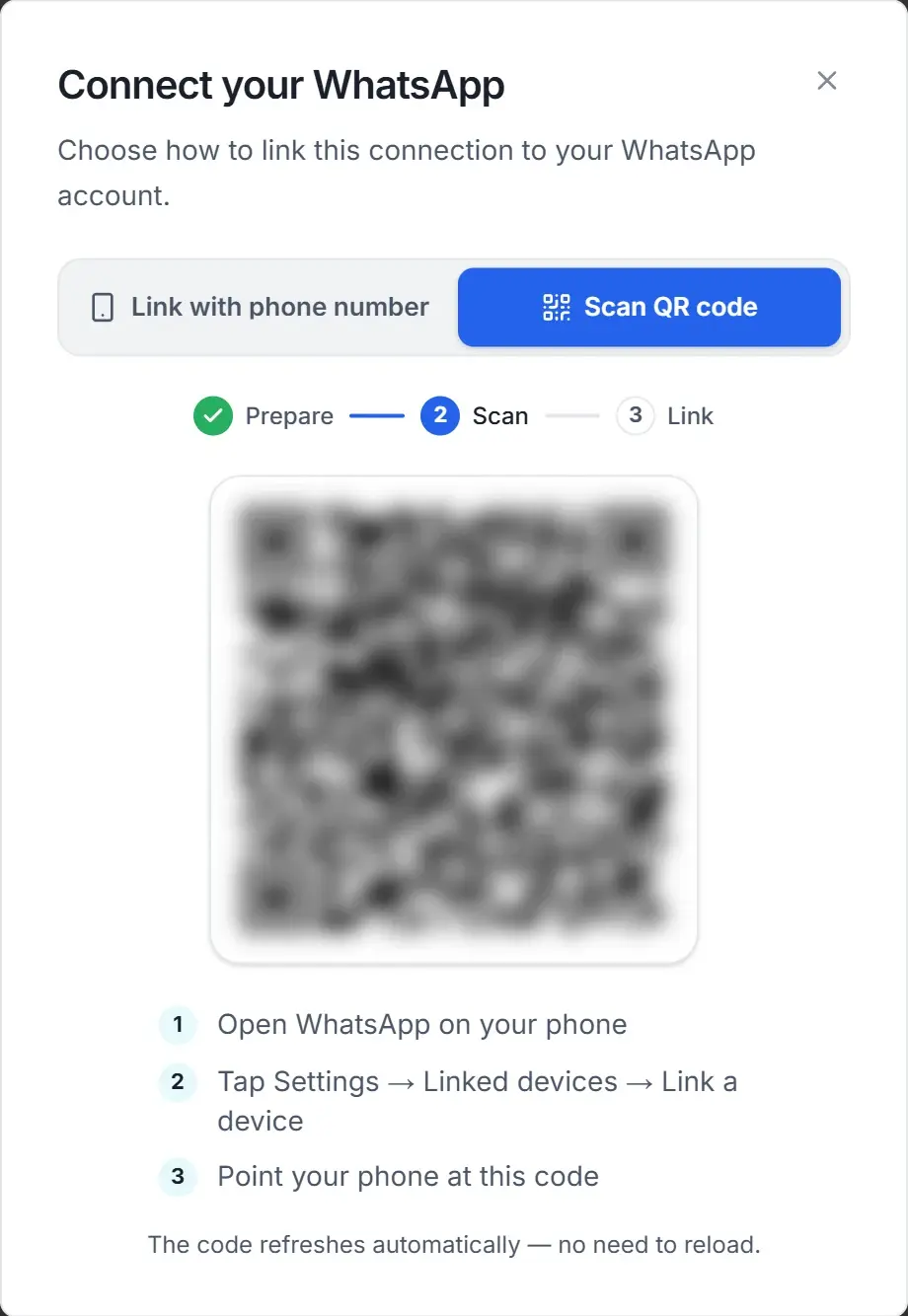
Your plan includes one always-on connection per account.
What the status chip means
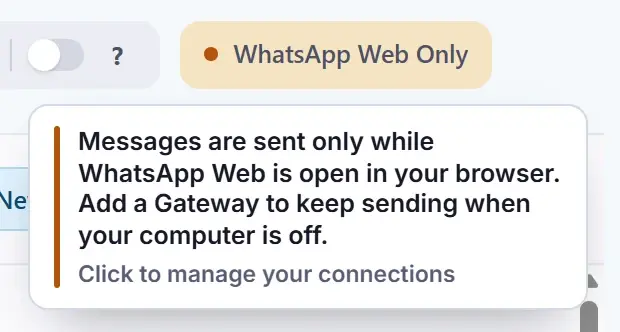
The chip at the top of the app tells you how Blueticks can send right now. Hover over it to see what it means.
| Chip | What it means | What to do |
|---|---|---|
| Connect WhatsApp | You haven’t connected WhatsApp yet. | Click it and connect. |
| WhatsApp Web Only | Messages send only while WhatsApp Web is open in your browser. | Open WhatsApp Web in Chrome on the computer with the extension, wait for your chats to load, and keep it open. |
| WhatsApp Ready (Offline OK) | Your always-on connection is linked. Messages send even when your computer is off. | Nothing. You’re set. |
| Scan QR Code to Connect | Your always-on connection is ready to link. | Open WhatsApp Connections and click Scan QR code on the Remote connection row. |
| WhatsApp Gateway Starting… | Your always-on connection is starting up. | Wait a moment. |
| No WhatsApp Connected | No WhatsApp is connected, so messages can’t be sent. | Open WhatsApp Web in Chrome, or add an always-on connection. |
| Not Connected | The app lost its connection to the Blueticks server. | Messages may not go out until it reconnects. If it stays this way, chat with us. |
Connection statuses and what to do
On WhatsApp Connections, an always-on connection shows one of these statuses:
| Status | What to do |
|---|---|
| Connected | Nothing. It’s sending. |
| Waiting for scan | Click Scan QR code on the row and scan the code with your phone. |
| Pairing Code Ready | On your phone, go to Settings → Linked devices → Link a device → Link with phone number instead and type the code. |
| Syncing Data | Keep WhatsApp open on your phone while your chats sync. |
| Needs Pairing or Disconnected | Use More actions → Restart connection. If it still isn’t Connected, use Delete connection, add it again and scan a new code. |
Restart or delete an always-on connection
Open the More actions menu (⋯) on the Remote connection row:
- Restart connection: fixes most sending problems, and you don’t need to scan again.
- Delete connection: stops sending. Adding it back needs a new scan.
A WhatsApp Web connection has no menu.
My message didn’t send
Work through these in order:
- Look at the status chip at the top of the app and do what the chip table says. Most of the time WhatsApp Web was closed.
- Check the connection’s status on WhatsApp Connections. If it isn’t Connected, follow Connection statuses and what to do.
- Restart the connection. Use More actions → Restart connection. You don’t need to scan again.
- Re-link as a last step. If a restart doesn’t help, use Delete connection, then add it again and scan a new code.
- Send the message again. In WhatsApp Web, the scheduled message card has a Send Now button (or Retry Send after a failure).
Still stuck? Chat with us from the app or email support@blueticks.co.
One WhatsApp number per account
Use a single WhatsApp number with each Blueticks account. If extensions on different computers are logged in to different numbers, you can’t control which number sends a message. For several numbers, create a separate Blueticks account for each.
You can use the same number on several computers. Install the extension on each one and sign in with the same Blueticks account.