

Flow builder
Start with AI Agents. You describe what you want in plain words and the agent handles the conversation. It fits almost every automation. Use the flow builder only when you need full control over an exact, step-by-step script.
AI Agents or the flow builder?
| You want to… | Use |
|---|---|
| Answer customer questions, book, qualify leads, follow up, in natural conversation | AI Agents |
| Run a fixed script: send message X, wait for the reply, then send message Y, always in the same order | Flow builder |
| Branch on an exact answer or variable with rules you define node by node | Flow builder |
Not sure? Start with an AI Agent: Lesson 3.1: Build an agent in about a minute.
Open the flow builder
Go to app.blueticks.co/bot-list-view. Once your account has a flow bot, it also appears in the left menu as Agents, and the AI Agents item reads Agents 2.0.
Overview
The bot system uses a node-based approach where each node represents a specific action or decision point in your conversation flow. You can connect these nodes to create sophisticated automated workflows that respond to user messages, ask questions, make decisions, and connect to external systems.
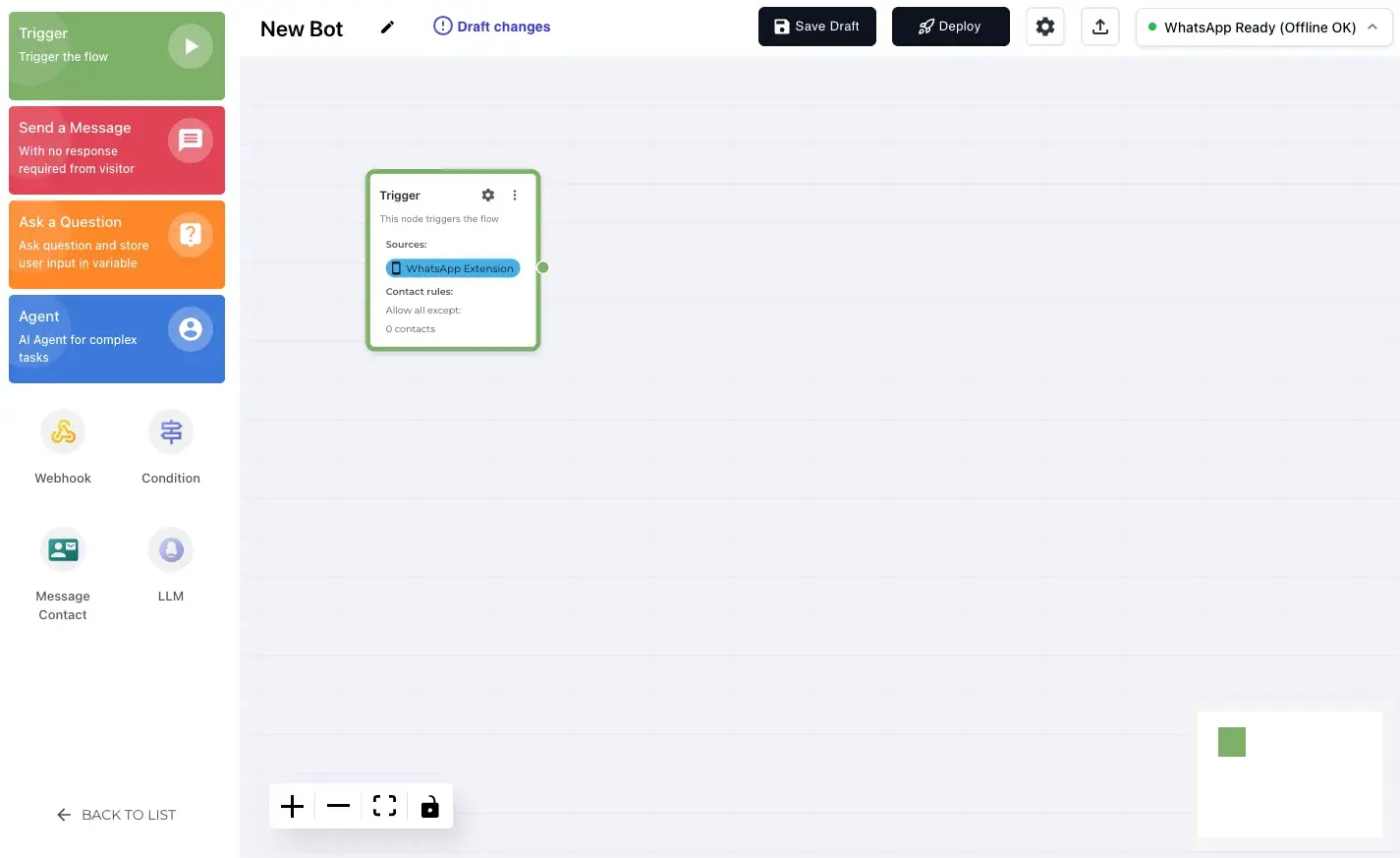
Key Components
- Agents: Automated bots that handle specific conversation flows
- Nodes: Building blocks that define actions and logic in your workflow
- Connections: Links between nodes that determine the conversation path
- Variables: Store and use data throughout the conversation flow
- Knowledge Bases: Collections of documents your AI agents can access for accurate responses
Credit Usage Overview
Bots use credits from your workspace’s shared credit balance:
- Session: 1 credit per conversation, charged the first time the bot does real work (for example, sends a message)
- AI model calls (LLM and Agent nodes): 1 credit per call
See Credits & Usage for your balance.
Getting Started with Agents
Agents are the main container for your bot workflows. Each agent has a specific purpose and can be deployed independently.
Managing Agents
The Agents dashboard allows you to manage all your automated workflows in one place.
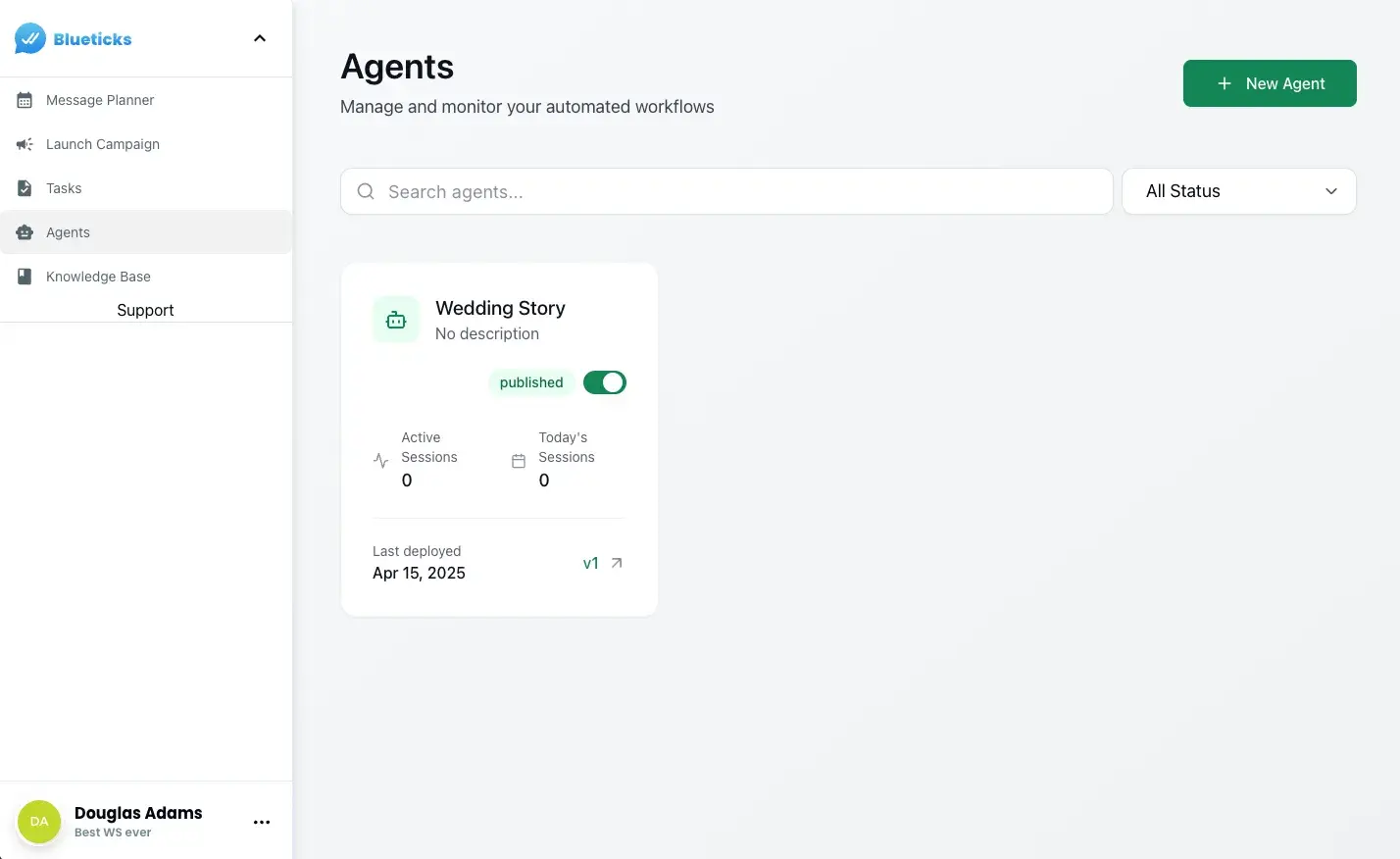
From this dashboard, you can:
- View all existing agents
- Monitor the status of each agent (published/draft)
- See active sessions and deployment dates
- Create new agents
- Filter agents by status
Creating a New Agent
To create a new agent:
- Click the “New Agent” button in the top right of the Agents dashboard
- Give your agent a name and description
- Design your conversation flow using nodes
- Save your draft or deploy immediately
Node Types
The bot system includes several node types, each serving a specific purpose in your conversation flow:
| Node Type | Purpose | Documentation |
|---|---|---|
| Trigger | Define what activates your bot | Trigger Node Documentation |
| Message | Send information without requiring a response | Message Node Documentation |
| Question | Ask questions and collect user responses | Question Node Documentation |
| Condition | Create branching logic based on variables or responses | Condition Node Documentation |
| Webhook | Connect to external systems and APIs | Webhook Node Documentation |
| LLM | Use AI language models for dynamic responses | LLM Node Documentation |
| Agent | Deploy autonomous AI agents with tools for complex tasks | Agent Node Documentation |
Knowledge Base
A key feature of the Blueticks bot system is the ability to integrate knowledge bases with your agents:
- Create comprehensive knowledge bases from your business documents
- Connect knowledge bases to Agent nodes for accurate, information-rich responses
- Automate customer support with AI agents that access your documentation
Learn more about Knowledge Base functionality.
Building a Bot Flow
Basic Workflow
- Start with a Trigger node to define when your bot activates
- Add Message nodes for sending information
- Use Question nodes to collect user inputs
- Implement Condition nodes to create branching logic
- Connect to external services with Webhook nodes
- For autonomous conversations, add Agent nodes as endpoints in your flow
Node Connection Types
Most nodes connect to subsequent nodes to create a flow:
- Standard nodes (Message, Question, Condition, Webhook, LLM): Connect to other nodes
- Agent nodes: Operate autonomously and don’t connect to other nodes, acting as endpoints in your flow
Best Practices
- Keep it conversational: Design your bot to feel natural and human-like
- Use clear questions: Make sure users understand what information you’re requesting
- Provide guidance: Use message nodes to explain the purpose of your bot
- Plan for errors: Create fallback paths for unexpected user responses
- Test thoroughly: Use the testing features to ensure your bot works as expected
Example Bot Flows
Customer Support Bot
A comprehensive customer support bot might have this structure:
- Trigger: Activated when a customer messages you
- Message: Welcome message explaining the bot’s purpose
- Question: Ask what the customer needs help with (with predefined options)
- Condition: Route to different flows based on the customer’s selection
- Agent: For complex questions, deploy an autonomous AI agent with access to your knowledge base (this is a flow endpoint)
- For simple questions, use a Message node to provide standard responses
Lead Generation Bot
A lead generation bot might look like:
- Trigger: Activated when a potential customer messages you
- Message: Introduction and value proposition
- Question: Ask qualifying questions about their needs
- LLM: Analyze responses to score the lead
- Webhook: Record lead information in your CRM
- Condition: Determine if the lead is qualified based on the LLM output
- Message: Schedule a follow-up or provide additional information
Moving to AI Agents
AI Agents replace the flow builder for new automations. Instead of connecting nodes, you describe the agent in plain words, choose which chats it answers, and add knowledge and integrations in a form.
Advanced Features
Variables
Variables allow you to store and use information throughout the conversation:
- Created automatically when using Question nodes
- Referenced using double curly braces:
{{variable_name}} - Available in Message text, Webhook data, and Condition logic
Flow Testing
Before deploying your bot:
- Use the built-in testing features to simulate conversations
- Test each path in your flow
- Verify that variables are correctly stored and used
- Check webhook connections
Deploying and Managing Bots
Once you’ve built your bot flow:
- Click “Save Draft” to store your changes without activating the bot
- Click “Deploy” to make your bot live and available to users
- Monitor your bot’s performance from the Agents dashboard
- Make adjustments as needed based on user interactions
Your bot will now be active and ready to handle conversations according to your designed flow.
Conclusion
The Blueticks bot system provides a powerful yet intuitive way to create automated conversation flows for WhatsApp. By combining different node types and following best practices, you can create sophisticated bots that enhance your messaging experience and save time on repetitive tasks.