

User Management
User Management is where you invite people to your workspace and manage their access. There are three roles: Owner, Member and Guest. The owner and members use a paid seat, and so does a member invite that is still pending. Guests are free.
Open it from your account menu: User Management. Owners and members see this page; guests don’t.
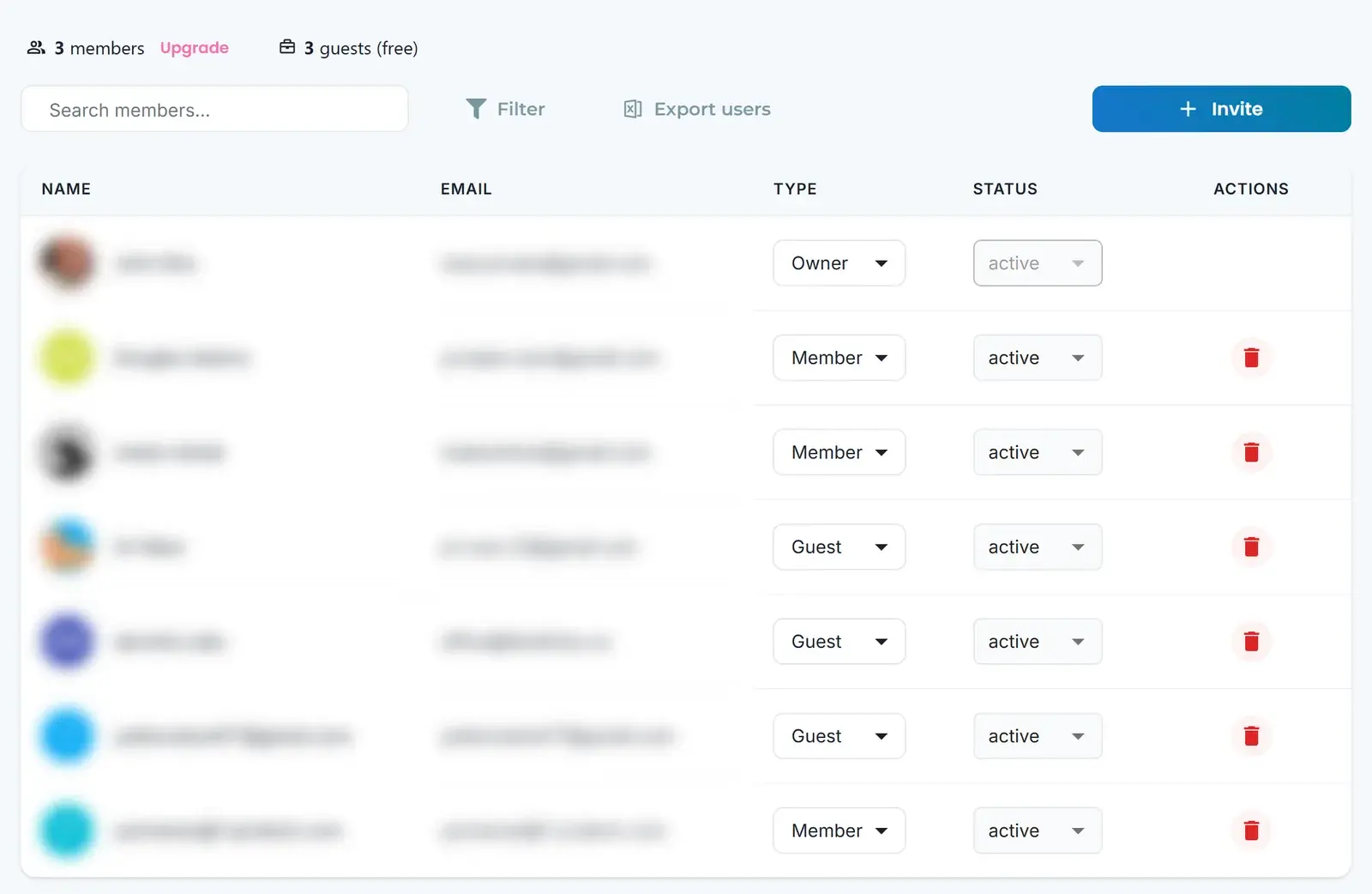
At the top you see how many members and guests (free) the workspace has. Click Upgrade next to the members count to add seats on the Buy Subscription page.
Invite a teammate
- Click Invite.
- Enter their Email Address.
- Click Invite.
The person joins as a Member with the status Pending until they accept. For a pending invite you can Resend invite or Copy invite link.
If you’ve used all your seats, Blueticks shows Seat limit exceeded. Click Add more seats to add seats on the Buy Subscription page.
Roles
- Owner: the person who owns the workspace. Only the owner sees the billing pages: Buy Subscription, Admin Billing and Credits & Usage. The owner’s role and status can’t be changed, and the owner can’t be removed.
- Member: a teammate on a paid seat.
- Guest: a free user who doesn’t take a paid seat.
To change someone’s role, open the menu in their Type column and pick Member or Guest.
Manage a user
In each user’s row you can:
- Set their Status to Active or Disabled.
- Click the red trash icon to remove them from the workspace.
Find and export users
- Search by name or email in Search members….
- Click Filter to filter by User Type (Owner, Member, Guest) and User Status (Pending, Active, Disabled).
- Click Export users to download the list as an Excel file.
Related
- Workspaces: create and switch between workspaces.