

Workspaces
A workspace has its own team, boards and plan. Use separate workspaces for separate businesses or clients. You can belong to several and switch between them at any time.
Create a workspace
- Open Tasks in the left menu.
- Click Workspaces in the left menu, then Add Workspace.
- Enter a Workspace name. You can also add a Workspace image and choose a Timezone.
- Click Save.
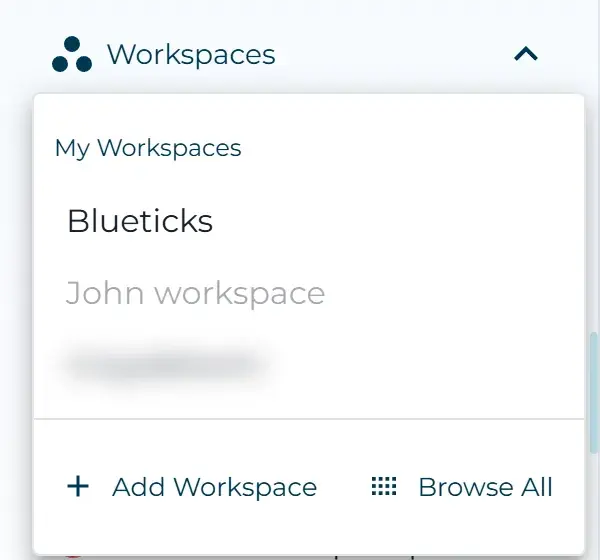
If you already belong to more than one workspace, you can also click New workspace on the Workspaces page in your account menu.
Switch workspaces
At the bottom of the left menu, click ⋯ next to your name, choose Switch Workspace and pick a workspace. You can also pick one under My Workspaces in the Tasks dropdown.
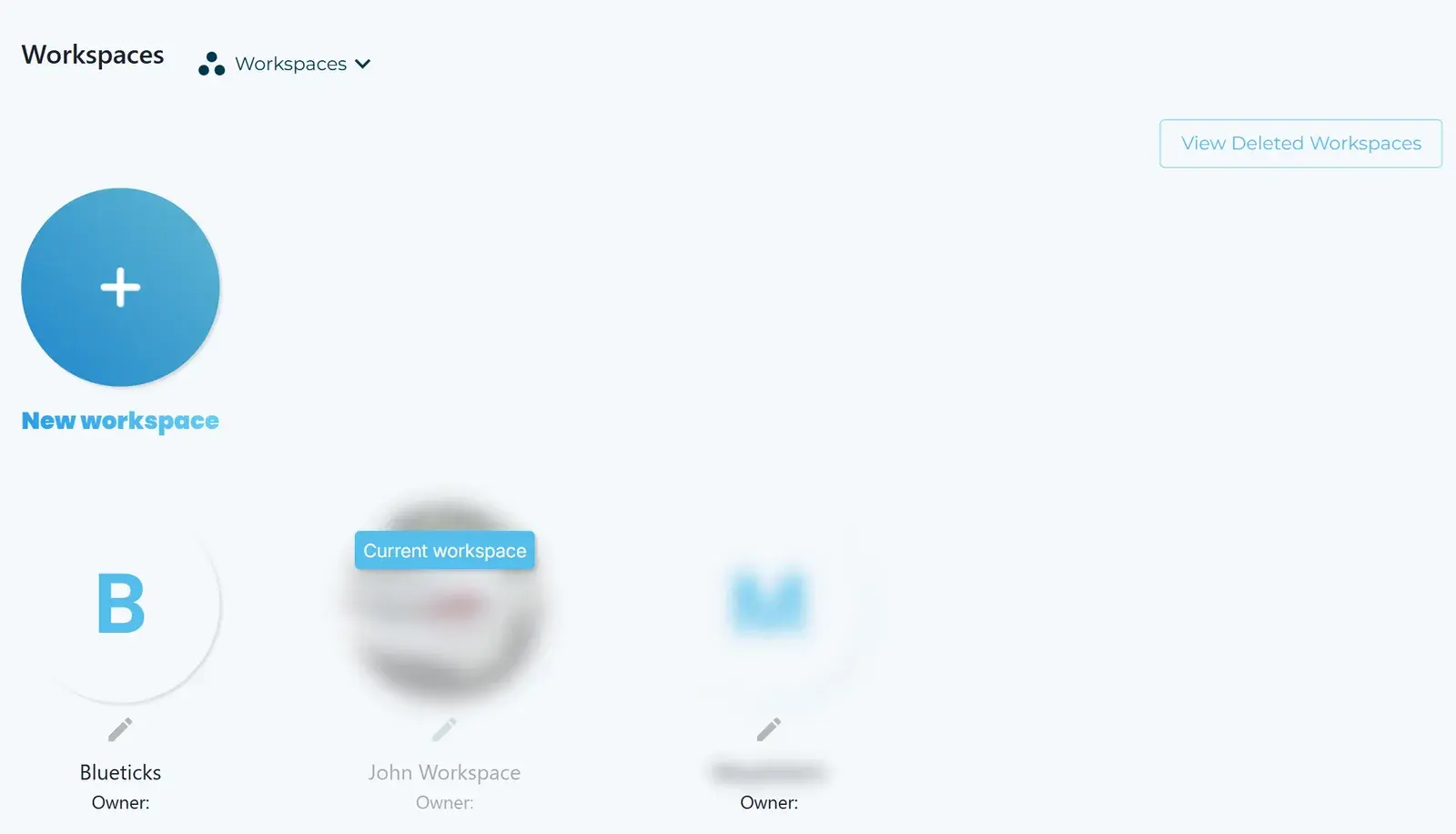
When you belong to more than one workspace, your account menu also shows Workspaces. There, the workspace you’re in is marked Current workspace, and you click any other workspace to switch to it.
Edit or delete a workspace
Only the workspace owner can edit it. On the Workspaces page, click the pencil icon under a workspace. You can change its name, image or timezone and click Save Changes, or click Delete Workspace.
To bring a deleted workspace back, click View Deleted Workspaces and then Restore next to it.
Invite people
You invite teammates to each workspace separately, from User Management. Each person’s role (Owner, Member or Guest) applies to that workspace only.